> ## Documentation Index
> Fetch the complete documentation index at: https://docs.shieldlabs.ai/llms.txt
> Use this file to discover all available pages before exploring further.
# FAQ
> Short answers to the questions developers ask most about ShieldLabs.
Each answer links to the page where the full detail lives.
## The product
ShieldLabs is fraud detection and prevention with traffic quality scoring. It detects risky users under any masking and stops multi-accounting, account sharing, account takeover and impossible travel. ShieldLabs works with five identities, each with its own risk and its own links: users (your accounts, keyed by the hashed User HID you pass), devices, visitors, public IPs and local IPs. Every user, device, visitor and IP carries the worst risk band of its activity, and the four [High-Risk Events](/features/high-risk-events) are detected on your users, each at Medium or High confidence. High-Risk Events are available in the analytics dashboard, the API and webhooks.
Underneath sits the event layer: each identification, one check by the JavaScript [snippet](/setup/snippet), collects 300+ device and network signals and returns a [Risk Score](/features/risk-scoring) from 0 to 100 with every [risk signal](/features/risk-signals) named and weighted, delivered by [webhook](/setup/webhooks) and readable through the [History API](/api/server-api). Integration takes five minutes. [Users, devices, visitors and IPs](/concepts/entities) explains the model.
Detection works out of the box, without building rules or training a fraud model. ShieldLabs stops fraud and abuse and helps block fraudulent and abusive traffic: you choose the action for each case (allow, step up, review or block) and act on the result in your backend.
The recurring jobs developers wire it into:
* **Accounts run by one person**: multi-accounting and account farms, plus referral, promo and bonus abuse where one person poses as many users.
* **Accounts used by someone else**: account sharing, impossible travel and account takeover on your signed-in users.
* **Risky users at sensitive moments** such as signup, login, payment or withdrawal, when a VPN, proxy, Tor or an anti-detect browser masks who is behind the account.
* **Traffic quality by source**: the share of risky identifications per paid or organic channel, campaign and referrer, so you pay for real users.
* **Trusted returning users and devices**, to cut friction for a known-good device.
The [use case tutorials](/use-case) have worked, copy-pasteable flows, and [High-Risk Events](/features/high-risk-events) detect multi-accounting, account sharing, impossible travel and account takeover directly on your users.
## Keys and setup
Each domain has three keys, plus one signing secret per webhook endpoint.
* **Public Key** goes in the [snippet](/setup/snippet) URL as `?publicKey=...`. It identifies your domain and is safe to expose in the browser.
* **Private API Key** (`sec_…`) is backend only, sent as a Bearer token to the [History API](/api/server-api) on `account.shieldlabs.ai`.
* **Secret Key** is backend only, for the [Management API](/api/server-api) on `api.shieldlabs.ai`, which reads your profile and the remaining included volume on your account.
* **Webhook signing secret** (`whsec_…`) is backend only, one per endpoint. Use it to [verify the `X-Shield-Signature` header](/setup/webhooks) on incoming webhooks.
Keys belong to one domain: use each domain's own keys on its site. Full details on [API keys](/setup/keys).
One identification is one unit of your plan: one check the snippet runs when you call `checkAnonymous`, `checkAuthenticatedUser` or a `forceCheck*` variant. The [Risk Score](/features/risk-scoring), its risk signals and the [webhook](/setup/webhooks) for that check all belong to that one identification.
Within one visit (while a page of your site stays open in the browser, across route changes in a single-page app and across open tabs), `checkAnonymous` and `checkAuthenticatedUser` run at most one identification every five minutes for the same user. A call inside that window posts nothing, counts nothing, and its `onInitialized` handler receives `{ status: "not_initialized" }`. On a multi-page site, a full page load in the only open tab can start a new visit with its own identification. The `forceCheck*` variants run an identification every time.
Reading results later through the [History API](/api/server-api) is **free**, and so are webhook delivery, the analytics dashboard and its exports, and reading your profile. When your account reaches its included volume, the identification request returns HTTP 402 until the billing cycle resets or you change plan. On Free, the 5,000 identifications are one time. [Billing & Plans](/billing) has the full breakdown.
Work down the path the data takes:
Open the browser network tab and check that `cdn.shieldlabs.ai/snippet.js?publicKey=...` loads with a 200, with the **correct Public Key** for this domain. A wrong or missing key, or a typo in the import URL, stops everything.
Make sure you actually call an export (`checkAnonymous()` or `checkAuthenticatedUser(hashedUserId)`) after the import resolves. Nothing is sent until one of them runs. Inside one visit (another tab of your site still open, or route changes in a single-page app) a repeat call within five minutes posts nothing, so use `forceCheckAnonymous()` while you test. In the analytics dashboard, **Integration > Install** shows **Pending** with **Recheck** until the first identification arrives, then says identifications are arriving from your domain (during onboarding, the Verify step has **Check installation**).
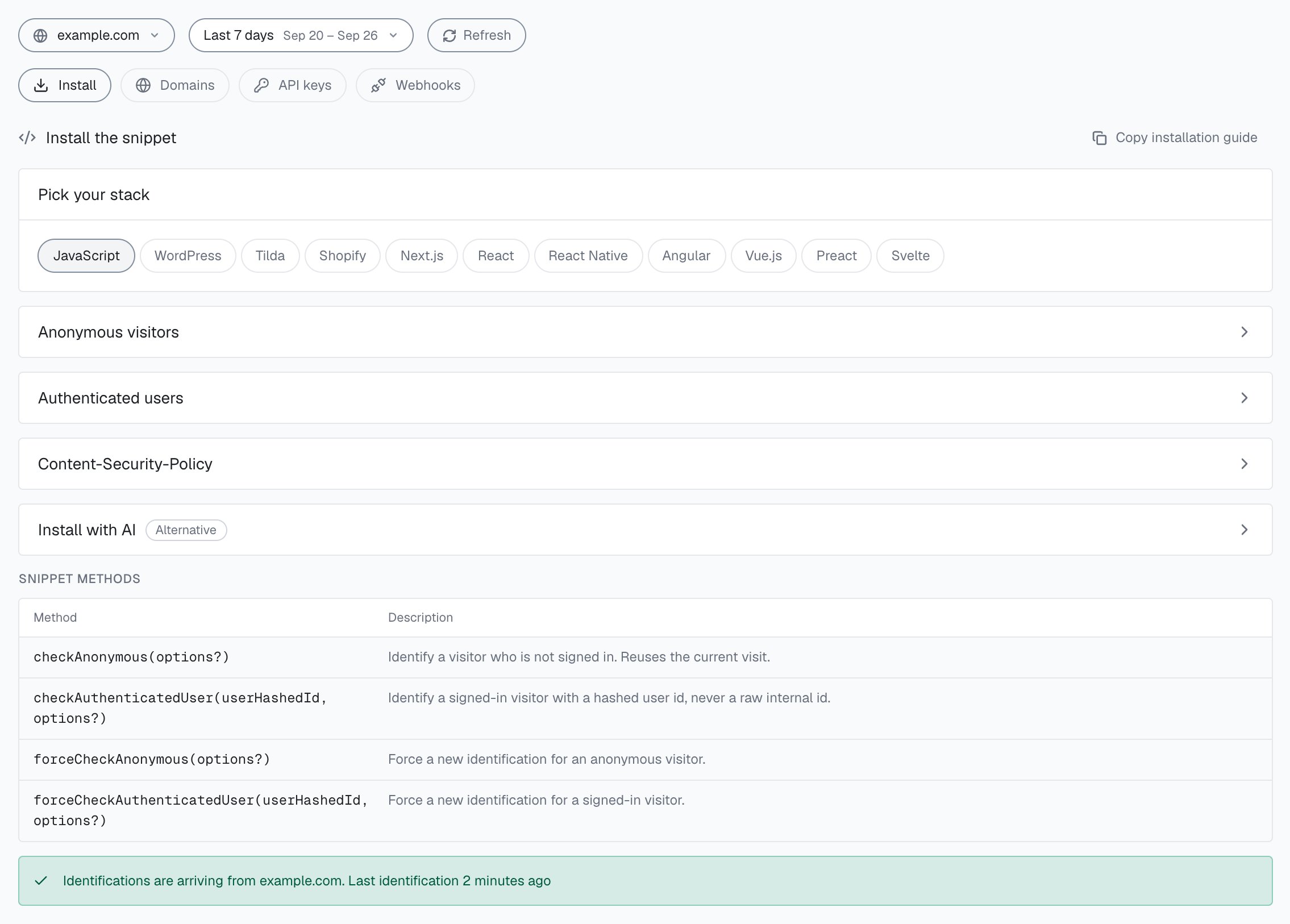
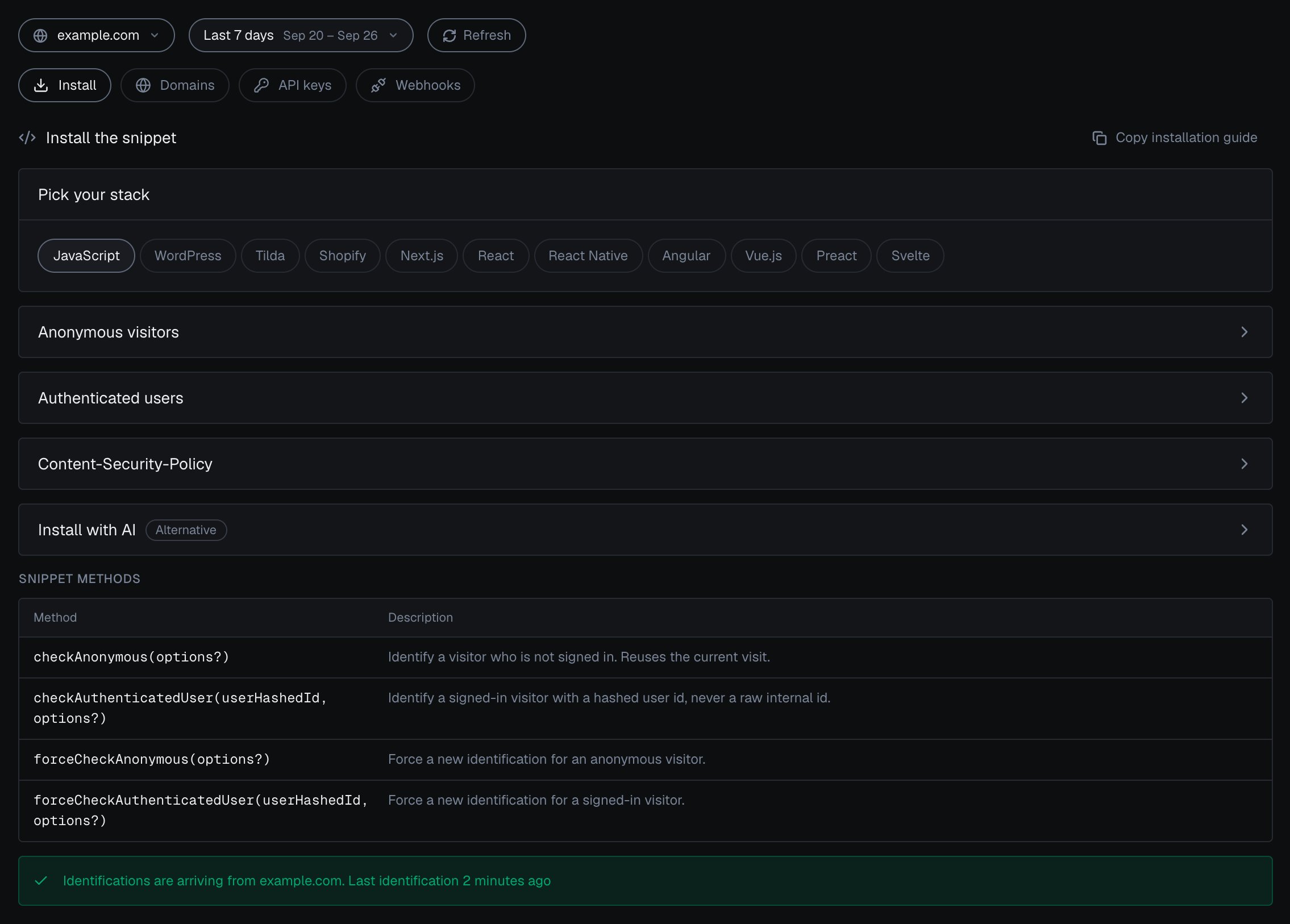 A strict Content-Security-Policy or an ad-blocker can silently block the snippet or its network calls. Allow the hosts in [CSP setup](/setup/csp).
Check your [webhook endpoints](/setup/webhooks): each must be HTTPS with a valid certificate and answer with a 2xx within 1 second. If your handler returns a 4xx or 5xx, or your `X-Shield-Signature` check rejects the payload, you will see no usable result. There are **no retries**, so verify the HMAC over the **raw request body** with the endpoint's `whsec_…` secret.
If checks succeed but you see no Risk Scores, jump to the **Why is my Risk Score 0?** question below.
## Identifiers and scoring
ShieldLabs works with five identities, and each has its own risk and its own links:
* **User (User HID)**: your account, the hashed or pseudonymous id you pass with `checkAuthenticatedUser`. Users, account-level risk and all four High-Risk Events are built on it. Anonymous checks send `"anonymous"` (webhook: `user_hid`).
* **Device (Device ID)**: the durable device, computed on the server. It holds through cleared cookies, incognito mode and IP changes; another browser is another Device ID (webhook: `device_id`).
* **Visitor (Visitor ID)**: one device plus one cookie, so it changes when cookies or storage are cleared (webhook: `visitor_id`).
* **Public IP** and **Local IP**: the public address with its country, and the address the browser itself reports, which can differ behind a VPN or proxy (webhook: `public_ip`, `local_ip`).
Each identification also carries per-call ids: the **request ID** (`request_id`), the join key your webhook handler is idempotent on; the **Session ID** (`session_id`) for one browsing session; and the **Cookie ID** (`cookie_id`), the first-party browser id. [Users, devices, visitors and IPs](/concepts/entities) covers the model, and the [Identifiers](/features/identification) page covers how each one is built and how long it lasts.
A 0 is usually correct, not a bug. The [Risk Score](/features/risk-scoring) is 0-100, and **0 means no risk signals fired** (the Trusted band, 0-29). On clean test traffic from a normal browser, a Risk Score of 0 is exactly what you should expect.
A known search-engine crawler also scores 0: ShieldLabs marks it as a good bot (`search_bot`) and sets its Risk Score to 0. Treat a permanent 0 as a problem only if you see it on **all real production traffic**, which points at a setup issue; in that case, work through the installation troubleshooting above.
There are three bands: **Trusted (0-29)**, **Suspicious (30-59)** and **Dangerous (60-100)**, defined on the [Risk Score](/features/risk-scoring) page. The webhook and the History API return the number, and your backend maps it to a band. Every user, device, visitor and IP carries the worst band of its identifications.
A common starting point: let Trusted through, step up or review Suspicious, and block, review or verify Dangerous. Weigh the account as well as the moment: the Risk Score at signup, login or checkout, the user's worst band, its linked devices and IPs, and any High-Risk Event on it. Read a high Risk Score together with its named risk signals and the user's history. A real customer on a corporate VPN can reach the Suspicious band; the signals show why, and you choose the action for each case. The [guide to acting on results](/guides/acting-on-risk-score) walks through each case.
The Risk Score runs from 0 to 100. The one value above 100 is `999`, the rate-limit marker written while a visitor IP is banned; it can appear on a webhook (`data.risk_score`) or a History row (`score`). Treat any value above 100 as that marker and route the action it belongs to to review, before your Risk Score logic runs: `if (data.risk_score > 100) return routeToReview(data.request_id);`. The browser receives an HTTP **429** at the [gateway](/rate-limits).
Users and High-Risk Events are built on the User HID. Pass a hashed User HID with `checkAuthenticatedUser` on every signed-in page. Identifications from `checkAnonymous` carry `"anonymous"` and link to devices, visitors and IPs only.
Once your signed-in pages send a User HID, ShieldLabs builds each user with its band and its linked devices, visitors and IPs, and detects the four High-Risk Events on your users. By default, Multi-accounting fires from 3 accounts on one visitor (one device plus one cookie) and Account sharing from 4 devices on one account; both thresholds are configurable. See [snippet setup](/setup/snippet#identify-signed-in-users).
## Reading your results
No, a webhook is optional. Without a registered endpoint, identifications **still run and still count** against your included volume, and the analytics dashboard still builds your users, devices, visitors and IPs, each with its band and linked identities. Risk Scores, risk signals and the High-Risk Events on your users appear in the analytics dashboard, and High-Risk Events are also available through the API. Every identification also stays readable through the [History API](/api/server-api), and a webhook adds the push to your backend.
Configure [webhook endpoints](/setup/webhooks) when you want to act on the Risk Score live, for example to challenge a risky login or hold a withdrawal. Add them in the analytics dashboard under **Integration > Webhooks** with **Add endpoint**, up to 10 endpoints per domain.
Both read your identifications; the analytics dashboard also rolls them up to your users.
* The **[analytics dashboard](/dashboard/overview)** is where you investigate at the account level: every user, device, visitor and public IP has a card with its band and its linked devices, visitors, accounts and IPs, and a user's card also shows its High-Risk Events, next to Overview, Analytics and an Export of up to 10,000 identifications to CSV. Viewing and exporting are **free**.
* The **[History API](/api/server-api)** reads the event layer from code: `GET https://account.shieldlabs.ai/api/v1/history/{type}/{value}` with a Bearer Private API Key returns identification rows as JSON, newest first, where `type` is `ip`, `visitor_id`, `device_id`, `user_hid`, `request_id`, `session_id` or `cookie_id`. To read everything one account did, use `user_hid/{value}` and page with `limit` (up to 100) and `offset`. Reads are **free**.
Use the analytics dashboard to investigate users and report, and the History API when your backend needs an account's or a device's identifications after the fact.
Yes. Users and devices hold without cookies; only the Visitor ID depends on them.
The **Device ID** is computed on the server from device signals, so a returning device keeps the same Device ID after clearing cookies or opening an incognito window. The **User HID** is the account id you pass, so browser storage never changes it. The **Visitor ID** is one device plus one cookie: clearing cookies or storage creates a new Cookie ID and therefore a new Visitor ID. The [Identifiers](/features/identification) page draws out each boundary.
## Performance
The impact is minimal. The snippet is loaded with a dynamic `import()`, which is non-blocking, and signal collection runs asynchronously after the page is interactive. It stays off the critical render path.
Scoring happens on the server: the [Risk Score](/features/risk-scoring) and identifiers are computed in about 300 ms and pushed to your [webhook](/setup/webhooks), at most about 10 seconds after the check when follow-up network checks run, so the user never waits on it. The browser only collects signals and posts them.
## Still stuck?
If a check runs but a result never appears, re-read the [snippet setup](/setup/snippet) and [webhook setup](/setup/webhooks). The [API overview](/api/overview) and [API models](/api/models) carry the exact request and response shapes, and the [Errors](/errors) page explains each error meaning. Chat and email support are on every plan, including Free: see [Support](/support).
This documentation is built and hosted on [Mintlify](https://mintlify.com), a developer documentation platform.
A strict Content-Security-Policy or an ad-blocker can silently block the snippet or its network calls. Allow the hosts in [CSP setup](/setup/csp).
Check your [webhook endpoints](/setup/webhooks): each must be HTTPS with a valid certificate and answer with a 2xx within 1 second. If your handler returns a 4xx or 5xx, or your `X-Shield-Signature` check rejects the payload, you will see no usable result. There are **no retries**, so verify the HMAC over the **raw request body** with the endpoint's `whsec_…` secret.
If checks succeed but you see no Risk Scores, jump to the **Why is my Risk Score 0?** question below.
## Identifiers and scoring
ShieldLabs works with five identities, and each has its own risk and its own links:
* **User (User HID)**: your account, the hashed or pseudonymous id you pass with `checkAuthenticatedUser`. Users, account-level risk and all four High-Risk Events are built on it. Anonymous checks send `"anonymous"` (webhook: `user_hid`).
* **Device (Device ID)**: the durable device, computed on the server. It holds through cleared cookies, incognito mode and IP changes; another browser is another Device ID (webhook: `device_id`).
* **Visitor (Visitor ID)**: one device plus one cookie, so it changes when cookies or storage are cleared (webhook: `visitor_id`).
* **Public IP** and **Local IP**: the public address with its country, and the address the browser itself reports, which can differ behind a VPN or proxy (webhook: `public_ip`, `local_ip`).
Each identification also carries per-call ids: the **request ID** (`request_id`), the join key your webhook handler is idempotent on; the **Session ID** (`session_id`) for one browsing session; and the **Cookie ID** (`cookie_id`), the first-party browser id. [Users, devices, visitors and IPs](/concepts/entities) covers the model, and the [Identifiers](/features/identification) page covers how each one is built and how long it lasts.
A 0 is usually correct, not a bug. The [Risk Score](/features/risk-scoring) is 0-100, and **0 means no risk signals fired** (the Trusted band, 0-29). On clean test traffic from a normal browser, a Risk Score of 0 is exactly what you should expect.
A known search-engine crawler also scores 0: ShieldLabs marks it as a good bot (`search_bot`) and sets its Risk Score to 0. Treat a permanent 0 as a problem only if you see it on **all real production traffic**, which points at a setup issue; in that case, work through the installation troubleshooting above.
There are three bands: **Trusted (0-29)**, **Suspicious (30-59)** and **Dangerous (60-100)**, defined on the [Risk Score](/features/risk-scoring) page. The webhook and the History API return the number, and your backend maps it to a band. Every user, device, visitor and IP carries the worst band of its identifications.
A common starting point: let Trusted through, step up or review Suspicious, and block, review or verify Dangerous. Weigh the account as well as the moment: the Risk Score at signup, login or checkout, the user's worst band, its linked devices and IPs, and any High-Risk Event on it. Read a high Risk Score together with its named risk signals and the user's history. A real customer on a corporate VPN can reach the Suspicious band; the signals show why, and you choose the action for each case. The [guide to acting on results](/guides/acting-on-risk-score) walks through each case.
The Risk Score runs from 0 to 100. The one value above 100 is `999`, the rate-limit marker written while a visitor IP is banned; it can appear on a webhook (`data.risk_score`) or a History row (`score`). Treat any value above 100 as that marker and route the action it belongs to to review, before your Risk Score logic runs: `if (data.risk_score > 100) return routeToReview(data.request_id);`. The browser receives an HTTP **429** at the [gateway](/rate-limits).
Users and High-Risk Events are built on the User HID. Pass a hashed User HID with `checkAuthenticatedUser` on every signed-in page. Identifications from `checkAnonymous` carry `"anonymous"` and link to devices, visitors and IPs only.
Once your signed-in pages send a User HID, ShieldLabs builds each user with its band and its linked devices, visitors and IPs, and detects the four High-Risk Events on your users. By default, Multi-accounting fires from 3 accounts on one visitor (one device plus one cookie) and Account sharing from 4 devices on one account; both thresholds are configurable. See [snippet setup](/setup/snippet#identify-signed-in-users).
## Reading your results
No, a webhook is optional. Without a registered endpoint, identifications **still run and still count** against your included volume, and the analytics dashboard still builds your users, devices, visitors and IPs, each with its band and linked identities. Risk Scores, risk signals and the High-Risk Events on your users appear in the analytics dashboard, and High-Risk Events are also available through the API. Every identification also stays readable through the [History API](/api/server-api), and a webhook adds the push to your backend.
Configure [webhook endpoints](/setup/webhooks) when you want to act on the Risk Score live, for example to challenge a risky login or hold a withdrawal. Add them in the analytics dashboard under **Integration > Webhooks** with **Add endpoint**, up to 10 endpoints per domain.
Both read your identifications; the analytics dashboard also rolls them up to your users.
* The **[analytics dashboard](/dashboard/overview)** is where you investigate at the account level: every user, device, visitor and public IP has a card with its band and its linked devices, visitors, accounts and IPs, and a user's card also shows its High-Risk Events, next to Overview, Analytics and an Export of up to 10,000 identifications to CSV. Viewing and exporting are **free**.
* The **[History API](/api/server-api)** reads the event layer from code: `GET https://account.shieldlabs.ai/api/v1/history/{type}/{value}` with a Bearer Private API Key returns identification rows as JSON, newest first, where `type` is `ip`, `visitor_id`, `device_id`, `user_hid`, `request_id`, `session_id` or `cookie_id`. To read everything one account did, use `user_hid/{value}` and page with `limit` (up to 100) and `offset`. Reads are **free**.
Use the analytics dashboard to investigate users and report, and the History API when your backend needs an account's or a device's identifications after the fact.
Yes. Users and devices hold without cookies; only the Visitor ID depends on them.
The **Device ID** is computed on the server from device signals, so a returning device keeps the same Device ID after clearing cookies or opening an incognito window. The **User HID** is the account id you pass, so browser storage never changes it. The **Visitor ID** is one device plus one cookie: clearing cookies or storage creates a new Cookie ID and therefore a new Visitor ID. The [Identifiers](/features/identification) page draws out each boundary.
## Performance
The impact is minimal. The snippet is loaded with a dynamic `import()`, which is non-blocking, and signal collection runs asynchronously after the page is interactive. It stays off the critical render path.
Scoring happens on the server: the [Risk Score](/features/risk-scoring) and identifiers are computed in about 300 ms and pushed to your [webhook](/setup/webhooks), at most about 10 seconds after the check when follow-up network checks run, so the user never waits on it. The browser only collects signals and posts them.
## Still stuck?
If a check runs but a result never appears, re-read the [snippet setup](/setup/snippet) and [webhook setup](/setup/webhooks). The [API overview](/api/overview) and [API models](/api/models) carry the exact request and response shapes, and the [Errors](/errors) page explains each error meaning. Chat and email support are on every plan, including Free: see [Support](/support).
This documentation is built and hosted on [Mintlify](https://mintlify.com), a developer documentation platform.