

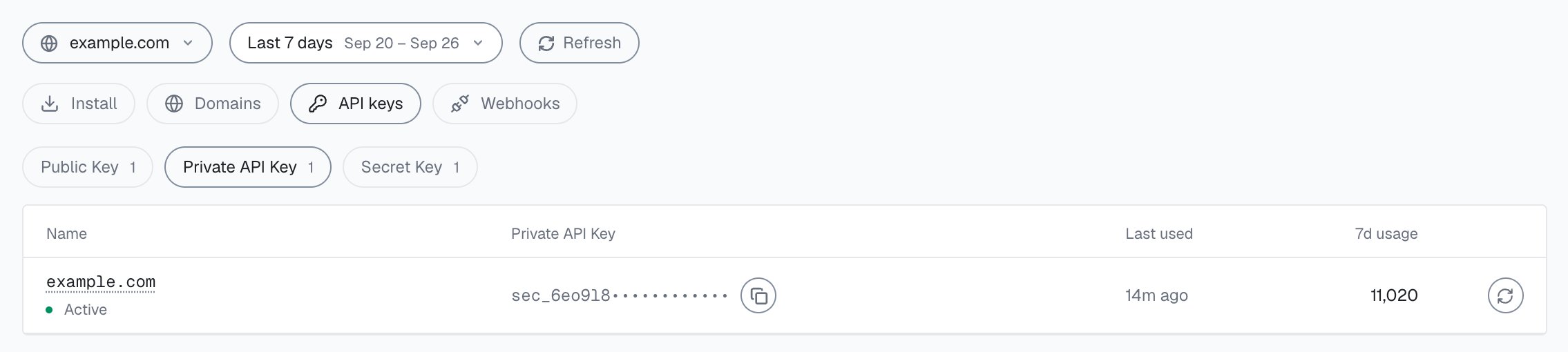
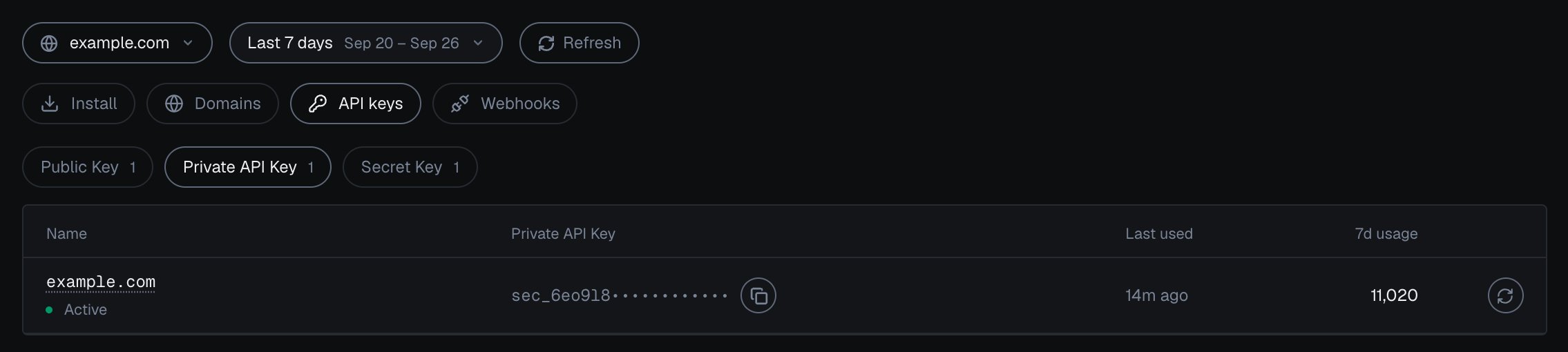
Integration > API keys in the analytics dashboard: one domain's Private API Key, masked, with tabs for Public Key, Private API Key and Secret Key.
Public Key
The Public Key is the only credential that ships to the browser, and exposing it there is by design.- Goes in the snippet URL as the
?publicKey=query parameter. - Tells
rest.shieldlabs.aiwhich domain an identification belongs to. - Safe to expose. It is visible in your page source and cannot read data, change settings, or authenticate against any server API.
- The request is only accepted when the Public Key matches the domain it is served from, or a subdomain of it while the domain accepts subdomains (the default; see Domains). The domain is resolved from the
Origin,Referer, orHost. A Public Key lifted from your page will not work on someone else’s domain.
checkAuthenticatedUser for signed-in users.
Private API Key
The Private API Key is the credential for the recommended History API. In the analytics dashboard, open Integration > API keys and select the domain.- Send it as
Authorization: Bearer sec_…toaccount.shieldlabs.ai/api/v1/…. - Reads identifications from the History API: one by
request_id, or every identification of one user, device, visitor or IP byuser_hid,device_id,visitor_idorip. The key reads only its own domain. - Stays on your server: it never goes in the snippet or the browser.
- Rotate it on its own, without touching the Public Key and Secret Key, under Integration > API keys.
Secret Key
The Secret Key authenticates the Management API onapi.shieldlabs.ai: the profile, which includes the remaining included volume on your account.
Management API auth
Recommended:
X-Shield-Domain + Authorization: Bearer headers on api.shieldlabs.ai/v1/….Webhook verification
Each webhook endpoint you register under Integration > Webhooks in the analytics dashboard signs with its own
whsec_… secret, separate from the Secret Key. Verify the X-Shield-Signature header over the raw request body with that secret.Check which keys a domain uses
The free Profile endpoint onapi.shieldlabs.ai returns the Public Key and the Secret Key masked to the last four characters, so you can confirm which key a domain uses without exposing it. It never counts against your plan.
Rotating keys
After rotating a key:
1
Update the snippet (Public Key)
Replace the
?publicKey= value in your snippet (or the environment variable that feeds it) with the new Public Key.2
Update your server (Private API Key or Secret Key)
Swap the rotated key on your server: the Private API Key for History API reads, the Secret Key for Management API auth. Keep it in your secrets manager, not in code. Webhook endpoint secrets (
whsec_…) are managed separately, per endpoint, under Integration > Webhooks.3
Confirm with Profile
Call the Profile endpoint and check that the masked tails match the new keys.
Rotate keys whenever a credential may have been exposed (a leaked log, a committed
.env, an offboarded teammate) and on a routine schedule for sensitive domains.Where to find your keys
In the analytics dashboard (app.shieldlabs.ai), open Integration and select your domain (Integration describes each tab):- Install: the snippets, with the Public Key already in them
- API keys: the Public Key, the Private API Key (History API) and the Secret Key (Management API), each with a copy button and Rotate
- Webhooks: each endpoint with its
whsec_…signing secret
Next steps
Wire the Public Key into the snippet, register webhook endpoints and verify each endpoint’swhsec_… secret per the webhooks guide, and read results, including every identification of one user, through the History API.